> HTML source: [PasteNook — Mac clipboard history & search | Haloa](https://haloa.cc/apps/pastenook/)
> Page language: en
PasteNook
Mac clipboard history & search
# Pick up where you left off
Keep what you copy from now on. Find it with a keyword, then copy it again when you need it.
[](https://apps.apple.com/app/apple-store/id6762595649?pt=128693951&ct=haloa_product&mt=8)[App Demo](https://haloa.cc/apps/pastenook/#showcase)
- Clipboard history
- Sequential paste
- Word splitting
- Image OCR
- Multi-select merge
- Keyword & note search
REAL APP RECORDINGS
## Real App Recordings
Recorded directly from the Mac app. Watch the complete workflow first, or switch between 11 feature clips below.
[Pick up where you left off](https://haloa.cc/media/pastenook/en/main.mp4)
Recorded from the real app, cropped and slowed for readability. Available versions and features are described in the App Store and in the app. The translation clip shows language-resource setup; image text needs human review.
### Explore the demos
Pick any feature clip below to inspect the real workflow and result in the player.
[Video](https://haloa.cc/media/pastenook/en/edit.mp4)
A new version, with the original kept
FEATURES
## What you can do
Record new copies, retrieve a captured item with a keyword, or combine several text cards into a draft.
History Search
### Find an earlier copy
Search the items PasteNook has recorded. Search also finds notes; note and time filters help narrow the list.
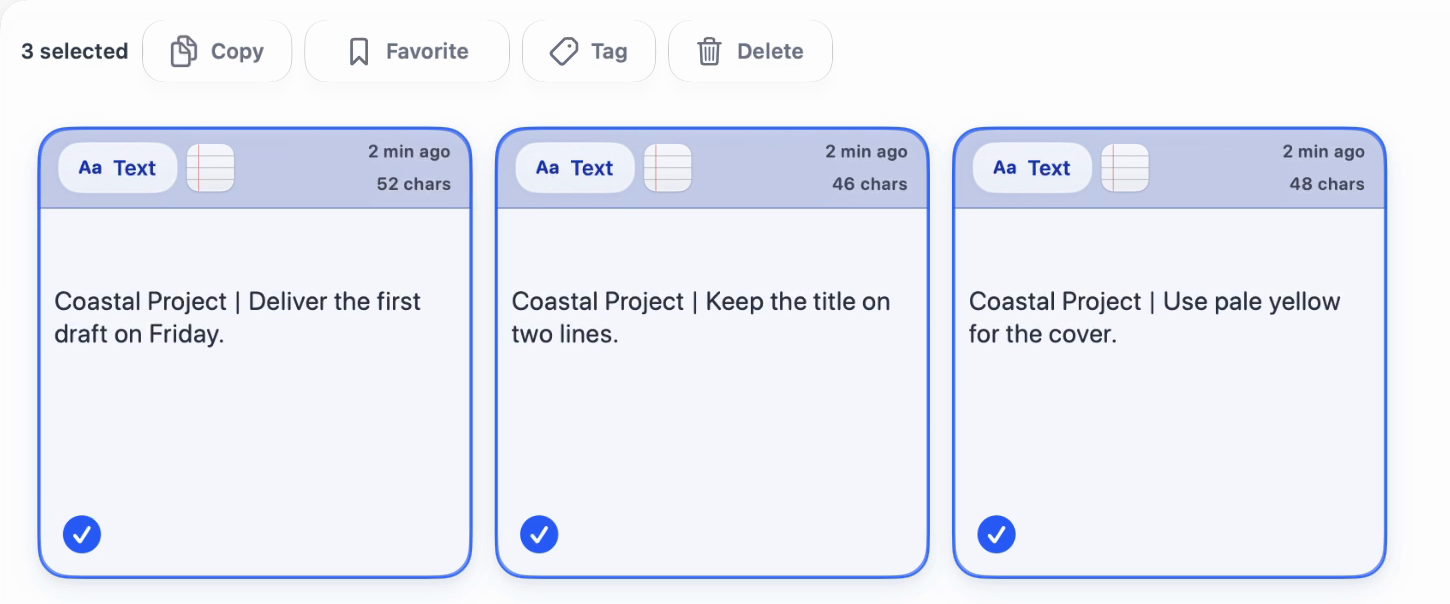
Sequential & Batch Paste
### Copy several text clips together
Select individual cards or sweep across them, then copy the selection. Text clips are combined with line breaks. This is one combined copy, not an automatic paste queue.
Big Bang Word Split
### Split long text and reassemble
Break any copied sentence into selectable word tokens, pick only the pieces you need, and copy the combined result.
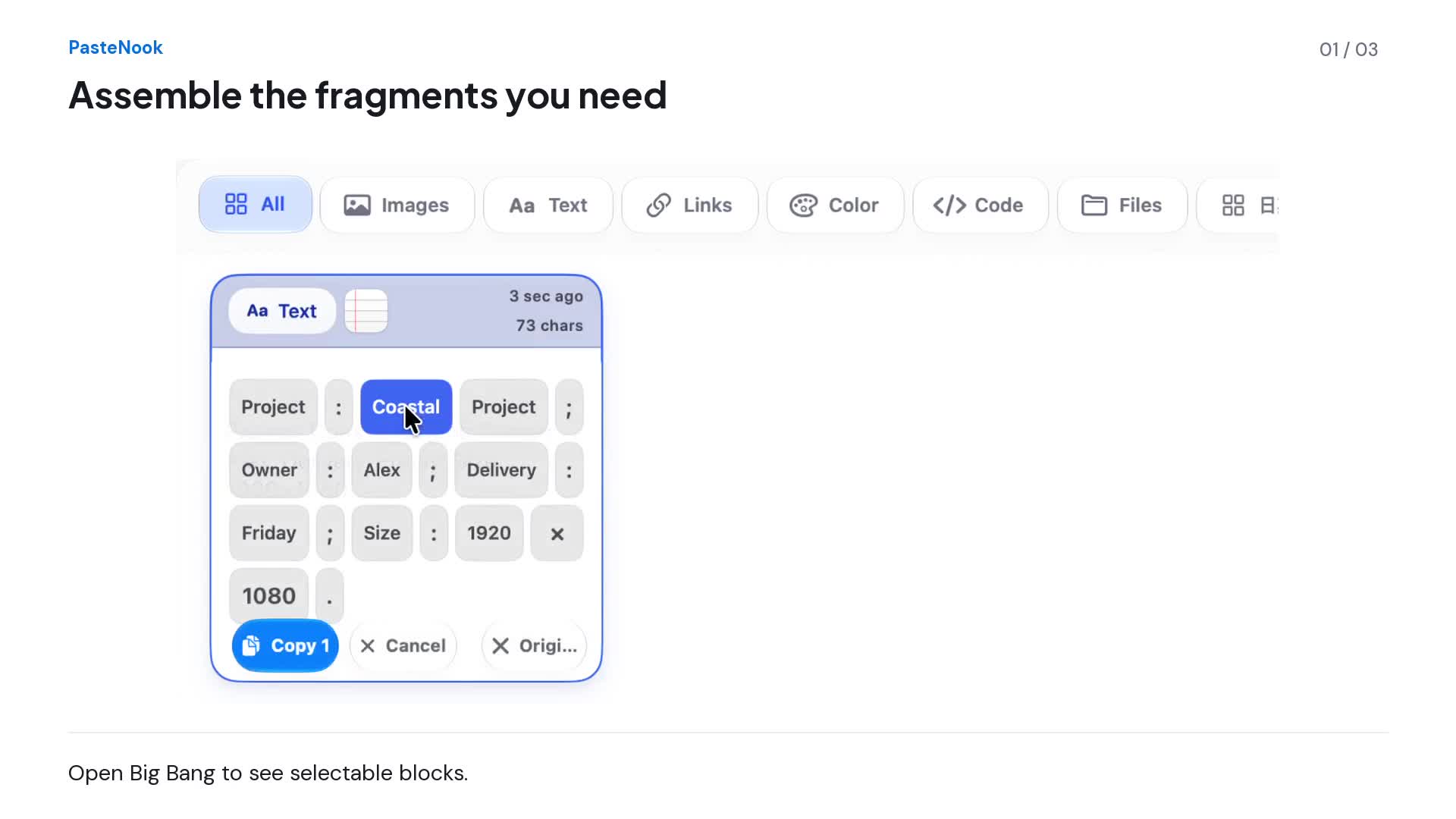
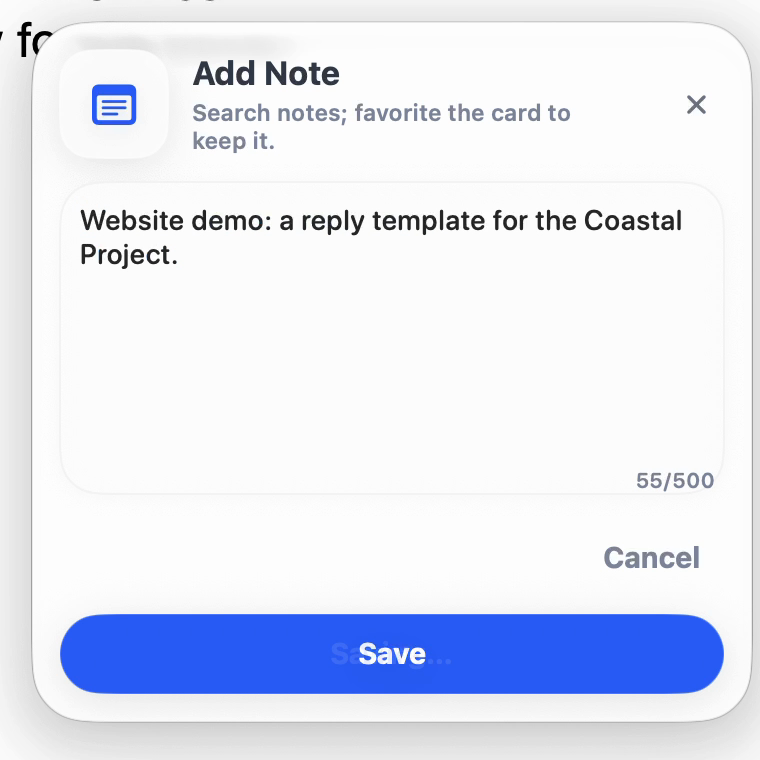
Image OCR & Notes
### Extract image text & leave a note
Run on-device Vision OCR on copied images, or attach notes and pin cards so key clips stay easy to find.
Collections & Rules
### Favorites, custom tags and advanced app filters or exclusion rules
Remove the free item-count limit; retention and storage settings still apply. Enhanced previews, QR tools, backup, restore and whole-library CSV/JSON export.

WORKFLOWS
## Choose a task
### Find your Mac clipboard history
1. Record a few new copies: Open PasteNook and make sure recording is active. In a document, copy a short, non-sensitive sentence with Command+C, then copy a second sentence. Starting the app after both copies does not recreate a history of them.
2. Open the panel and browse: Open PasteNook’s panel and look for the newly captured cards. The real panel below illustrates how different types of captured content appear. A record refers to captured content; it is not a backup of everything in the source app.
3. Search with a distinctive word: Enter a word from the item you want. If the list becomes empty, clear category, time and “Has Note” filters and try a shorter query. Notes can also supply searchable context. Search is limited to recorded and retained data.
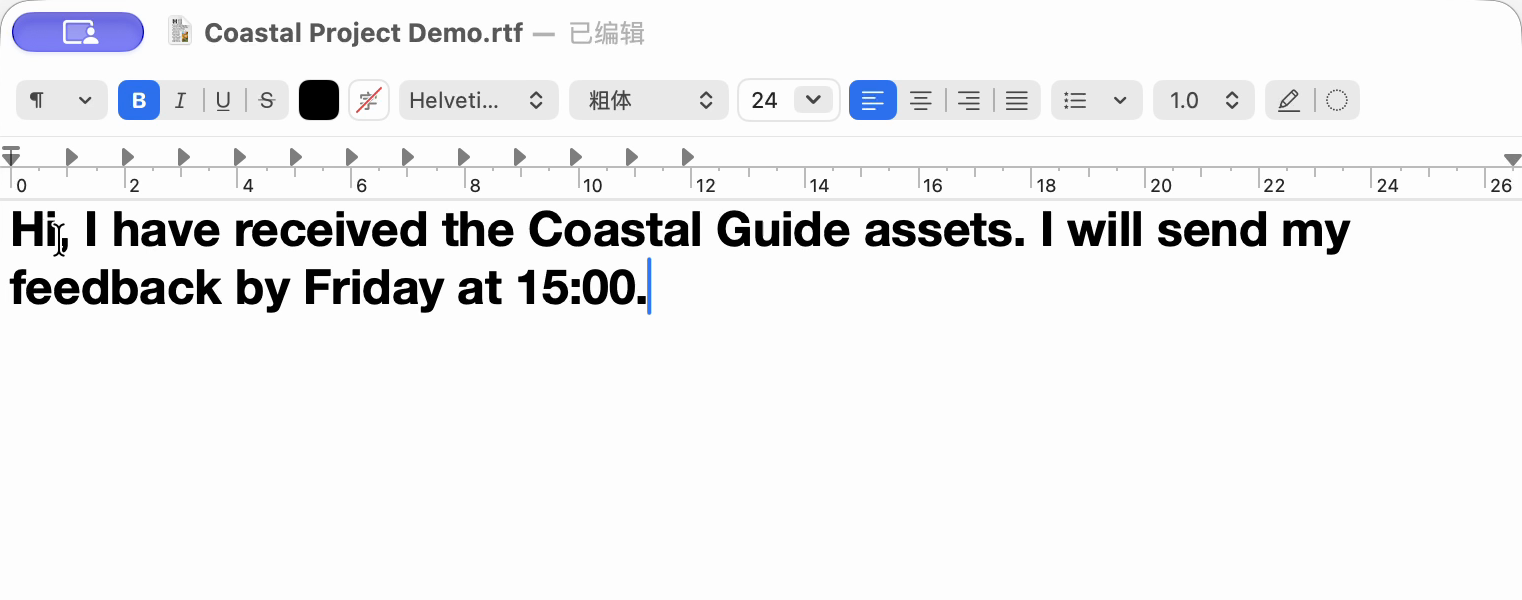
4. Copy the record, then paste: Choose the matching record and use Copy. Switch to a draft and press Command+V. The screenshot shows a real example of a captured reply used in a document. Optional automatic paste needs Accessibility permission; manual paste remains a useful way to check the result.
5. If the item is missing, check capture first: Check whether recording was paused, a source app or keyword was excluded, or the item was removed by retention, capacity limits or deletion. If it was never captured, search cannot restore it. If the source is still open, copy it again while recording is active.
PasteNook can show and search clipboard items it recorded while it was running with recording enabled. Start recording, copy something, then find that captured item in its panel. It cannot recover copies from before installation or content it never captured.
### Copy several text clips together
1. Capture the pieces you want: With recording active, copy two or three short text passages separately. Use a clear sample such as a project deadline, a title instruction and a cover instruction. Confirm that each passage appears as a card.
2. Select the intended cards: Choose “Select Multiple Cards” in the toolbar, then click the cards you need. You can also sweep across adjacent cards where the Mac selection surface supports it. Clicking individual cards is the precise alternative; you do not need a complex drag to complete this workflow.
3. Check the selected set and order: Check the selection count and selected card outlines before choosing Copy. The combined text follows the displayed list order rather than the order in which you clicked cards. If order matters, inspect the result before using it in final work.
4. Copy once and inspect in a draft: Choose Copy in the multi-select actions, switch to a document and press Command+V. Check that all intended passages are present and separated by line breaks. Edit the resulting text in the document if you need a different order or separator.
5. Use separate checks for images and files: Do not infer that the same result applies to a mixed selection. Some target apps accept multiple file URLs; others accept only text or one image. Try a non-sensitive sample in the actual destination. If it fails, copy suitable records separately rather than assuming a paste queue is running.
Use PasteNook multi-select to choose several recorded text cards, then choose Copy and paste the combined text into a draft. Text records are joined with line breaks in the displayed list order. This makes one combined copy; it does not paste a queue of separate items automatically.
### Search and organize your clipboard
1. Search before adding more filters: Try a distinctive word from the content. Then add a type or time condition if the result is too broad. This makes it easier to see which condition removed an expected item.
2. Write a note that supplies missing context: Right-click a card and choose Add/Edit Note and add a project alias or purpose, such as “reply template for Coastal Notes.” Save the note. The screenshot shows the real note editor; the note is metadata, not replacement clipboard text.
3. Find it by note and time: Search for a distinctive word from the saved note. Use “Has Note” to keep only annotated records, or select a time range such as today, yesterday or the last seven days. These controls can be combined, so reset them when you want a broader result.
4. Keep frequently used material easy to reach: Use card pinning to place useful content near the top. If you have a paid plan, use favorites or a custom tag for repeat-use material. Panel pinning keeps the panel open; it is a separate action and is not a promise to preserve every record forever.
5. Keep the workspace understandable: Choose the toolbar actions you actually use and arrange their order in Settings. You can also choose Liquid Glass or another available theme. These appearance choices do not expand capture, retention or search coverage.
Start with a keyword, then narrow the recorded history by type, time or whether a record has a note. In PasteNook, notes participate in search. Add a useful project name to a record’s note so you have another way to find it later.
PRICING
## Free and Pro
Start with the free plan for everyday clipboard history. Upgrade to Paid · VIP to unlock unlimited history, favorites, custom tags, and advanced filters.
### Free
Free
- Capture text, images and files; browse categories, search and copy again
- Up to 100 history items / 500 MiB in the current configuration
- Notes, basic text editing, single-record TXT export, multi-select, pinned cards and panel pinning
- Basic local image OCR and text-fragment processing
- Apple system translation without Pro; requires macOS 15+, supported languages and required language resources
- Pause recording and explicitly delete unwanted records
Pro
### Pro
Paid unlock
Free for one month
- Remove the free item-count limit; retention and storage settings still apply
- Favorites, custom tags and advanced app filters or exclusion rules
- Enhanced previews, QR tools, backup, restore and whole-library CSV/JSON export
[](https://apps.apple.com/app/apple-store/id6762595649?pt=128693951&ct=haloa_product&mt=8)
| Feature | Free | Pro |
| --- | --- | --- |
| Find an earlier copy | ✓ | ✓ |
| Copy several text clips together | ✓ | ✓ |
| Split long text and reassemble | ✓ | ✓ |
| Extract image text & leave a note | ✓ | ✓ |
| Favorites, custom tags and advanced app filters or exclusion rules | — | ✓ |
Your page language does not select your store region. Current prices, currencies and offers are confirmed on the App Store purchase sheet.
### Subscription & trial
A trial applies only when the App Store offers eligibility for your account. Subscriptions renew automatically as shown on the App Store confirmation sheet and can be managed or canceled anytime in Apple Account subscription settings.
[Manage Apple subscriptions](https://support.apple.com/en-us/118428)
PRIVACY & LIMITS
## Your data and the limits
Local clipboard storage does not mean that no data is ever processed. Know when a feature uses a network connection or a system permission.
Storage and deletion: History is stored locally on your Mac. Delete selected records explicitly. Bulk history cleanup preserves favorites, so select and delete sensitive favorites separately. Backups and exports also need separate deletion.
Network access: Link previews contact the linked website and are enabled by default in the checked configuration; they can be turned off. Store purchases, update checks and preparation of system translation resources can also use the network.
Automatic paste: Accessibility permission lets PasteNook send Command+V after you choose a record. You can leave automatic paste off and paste manually. Target apps can handle content differently.
Recording controls: Pause recording when needed. App and keyword exclusion rules are available with the paid advanced-filter capability. App Store privacy disclosures currently list linked identifiers and product interaction data.
[Privacy policy](https://haloa.cc/apps/pastenook/privacy/)
### Before you start
- PasteNook can only find items it has captured. It cannot recover clipboard history from before installation or while recording was off.
- No. Multiple text records are combined into one copied text value with line breaks. Images, files and mixed selections depend on the supported pasteboard formats and the receiving app. Test the destination app; this is not an automatic paste queue or a guarantee that every app accepts a multi-item drop.
- Accessibility permission lets PasteNook send Command+V after you choose a record. You can leave automatic paste off and paste manually. Target apps can handle content differently.
GUIDES & COMPARE
## Guides
[Guides ### Find your Mac clipboard history Find text, links and images that PasteNook has captured on your Mac. Learn how to start recording, search, copy again and check missing records. Read guide →](https://haloa.cc/guides/pastenook/clipboard-history/)[Guides ### Copy several text clips together Select several captured text cards, copy them as one value and check the result in a draft. Includes sweep selection and image or file limitations. Read guide →](https://haloa.cc/guides/pastenook/merge-text-clips/)[Guides ### Search and organize your clipboard Use keyword search, record notes, note and time filters, pinning and paid tags to organize captured clipboard history without changing source content. Read guide →](https://haloa.cc/guides/pastenook/search-notes-organize/)[Guides ### PasteNook vs Maccy, Paste, and Raycast Clipboard History: How to Choose a Mac Clipboard Manager Compare PasteNook, Maccy, Paste, and Raycast Clipboard History on macOS across clipboard history capture, batch multi-select merge copy, word splitting, local OCR, and privacy. Read guide →](https://haloa.cc/compare/pastenook-maccy-paste-raycast/)
COMPATIBILITY
## Compatibility
**System requirements**
macOS 13.0+
**View on the App Store**
[](https://apps.apple.com/app/apple-store/id6762595649?pt=128693951&ct=haloa_product&mt=8)
FAQ
## PasteNook · Product questions
### Can it recover copies from before I installed it?
No. PasteNook can search only content it captured while recording was enabled. Paused recording, exclusion rules, retention and capacity settings can also limit what remains available.
### Does multi-select paste each item automatically?
No. Multiple text records are combined into one copied text value with line breaks. Images, files and mixed selections depend on the supported pasteboard formats and the receiving app. Test the destination app; this is not an automatic paste queue or a guarantee that every app accepts a multi-item drop.
### What is free, and what needs a paid plan?
The free tier provides core recording, browsing, search and copying with a 100-item / 500 MiB history limit. Paid · VIP unlocks unlimited history, favorites, custom tags, advanced app filters or exclusions, enhanced previews, backup, restore, whole-library CSV/JSON export and QR tools. Current pricing and plan options are confirmed on the App Store purchase sheet.
### Why does automatic paste need Accessibility?
The optional action sends Command+V to the target app after you choose a record. Without permission you can copy the record and press Command+V yourself. Different apps can accept different formats.
### Is there a guaranteed free subscription trial?
No universal trial duration or eligibility is promised here. Check the offer and renewal price displayed by the App Store for your account. Downloading the app for free does not start a paid subscription by itself.
### What is the difference between Free and Paid · VIP, and where are prices confirmed?
The free tier provides core clipboard history (up to 100 items / 500 MiB), multi-select merge copy, basic local image OCR and macOS 15+ system translation; Paid · VIP unlocks unlimited history and all advanced local capabilities. Exact prices and available plans are confirmed on the App Store purchase sheet.
### How do word splitting (BigBang-style) and local image OCR work on Mac?
When a copied text clip contains a long sentence or address, PasteNook can split it into individual word tokens so you can pick and recombine only the fragments you need. When an image is copied, PasteNook uses Apple’s on-device Vision framework to extract text locally, and on macOS 15+ you can translate text via Apple system translation.
### How do I stop PasteNook from recording passwords or sensitive apps?
You can pause recording from the menu bar at any time, delete individual sensitive clips explicitly, or use VIP app and keyword exclusion rules to block password managers and private windows from being captured.
## Keep your next copy within reach.
Requires macOS 13 or later. Start recording before you need to find something again.
[](https://apps.apple.com/app/apple-store/id6762595649?pt=128693951&ct=haloa_product&mt=8)[Support](https://haloa.cc/apps/pastenook/support/)[Privacy policy](https://haloa.cc/apps/pastenook/privacy/)
Listed on
[](https://macpip.com/apps/pastenook-clipboard?ref=badge) [](https://postyourstartup.com/startup/pastenook?ref=badge) [](https://macbrowse.com/) [](https://macnative.io/apps/pastenook?utm_source=macnative-badge&utm_medium=referral)
PasteNook · System requirements: macOS 13.0+
MORE APPS
## More from Haloa
[### AirCalendar Menu bar calendar A menu bar calendar with dates, weather, events, and to-dos. A quiet home for your daily plans, right on your Mac. MacExplore](https://haloa.cc/apps/aircalendar/)
[### Clipture Screenshots & OCR Screenshots, annotations, and text recognition in a focused Mac tool. Capture what matters and get it ready to share. MacExplore](https://haloa.cc/apps/clipture/)
[### TeachingInk Screen annotation Annotate your Mac screen during lessons, presentations or training. Draw, write and highlight directly over your content. MacExplore](https://haloa.cc/apps/teachingink/)
[Documentation index](https://haloa.cc/llms.txt)