> HTML source: [How to extract text from a Mac screen or image | Haloa](https://haloa.cc/guides/clipture/extract-text/)
> Page language: en
[← Back to Clipture](https://haloa.cc/apps/clipture/)
# How to extract text from a Mac screen or image
Open Clipture OCR, select the text area on screen, review the recognized result and copy it into your document. An image can be displayed in another app first; Clipture recognizes what you select on screen.
Applies to Clipture 1.6.0 · macOS 14+ · Pro required
Use Clipture 1.6.0 with Pro on macOS 14 or later. Allow screen recording, then open the image in Preview or a browser and select its text on screen.
## In the app
1. Open the image in Preview, a browser or another application. Increase its display size until the text is clear and avoid cutting characters at the selection edge.
2. Open OCR from Clipture’s menu bar and select the text region. Recognition uses system Vision locally.
3. Review spelling, punctuation, line breaks, numbers and mixed Chinese/English text. System-supported languages, fonts and clarity affect the result.
4. Copy the text, paste it into your editor and make any corrections. Recognition does not automatically start translation.
## Sample interactive demo
The bilingual source image and checked transcript below are prepared for this webpage. The text is selectable; this is not live app recognition.
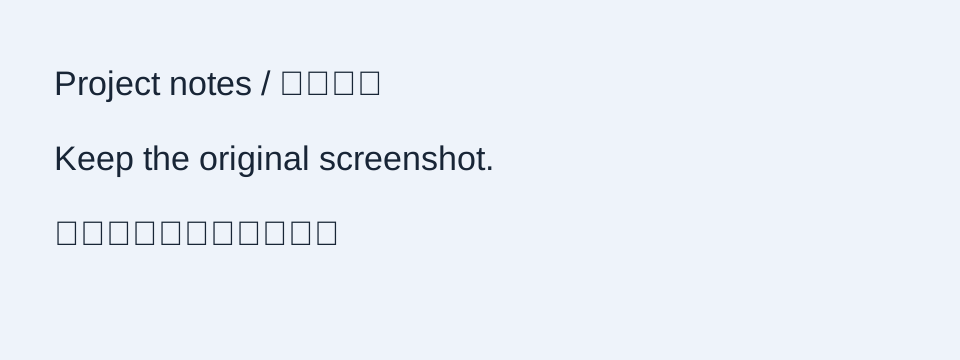
Sample image · made for this webpage
### Prepared full sample
Project notes / 项目记录 Keep the original screenshot. 核对文字,再复制使用。
[Explore the demos ↗](https://haloa.cc/apps/clipture/#clipture-demo)
## If the result is not right
- No text found: choose a clearer, complete passage instead of a large region with a complex background.
- Wrong characters or numbers: enlarge the original and reselect. Important figures should be checked against the image.
- Broken table structure: OCR extracts text; it does not promise to reconstruct complex tables or reproduce the original layout.
- Language not recognized: check the actual macOS language support and try a clearer sample; there is no fixed supported-language count promised here.
[Clipture support ↗](https://haloa.cc/apps/clipture/support/#ocr)
## Continue on your Mac
[](https://apps.apple.com/app/id6787685075?mt=12)
## Three tasks, three short guides
- [How to take a long screenshot on a Mac ↗](https://haloa.cc/guides/clipture/scrolling-screenshot/)
- [How to extract text from a Mac screen or image ↗](https://haloa.cc/guides/clipture/extract-text/)
- [How to translate screenshot text on a Mac ↗](https://haloa.cc/guides/clipture/translate-screenshot/)
- [Clipture vs Shottr, CleanShot X, and Snipaste: Choosing a Mac Screenshot, Pin & OCR Tool ↗](https://haloa.cc/compare/clipture-shottr-cleanshot-snipaste/)
[Documentation index](https://haloa.cc/llms.txt)