How to use a whiteboard or blackboard on your Mac
When an explanation needs a sketch or calculation, open a TeachingInk whiteboard or blackboard. A blank background gives you space to work through one idea before returning to your original content.
Before you start
Tools and access:Whiteboard / blackboard page 1 · Basic tools
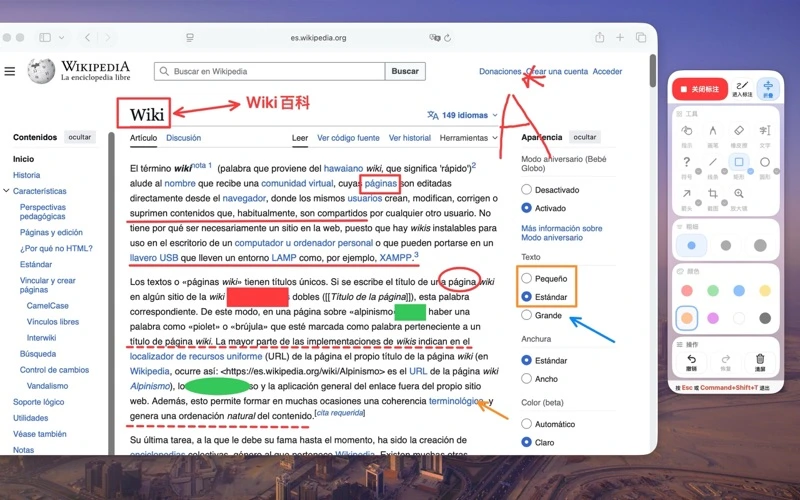
Open a whiteboard or blackboard
Choose a whiteboard or blackboard from the TeachingInk menu bar or floating palette. Confirm that the blank board canvas is visible before writing. Opening a board does not import or recognize individual slides.
Explain one idea on a page
Select the regular pen and write a few key words or draw a simple sketch. Basic writing on a single board does not require Pro; advanced tools such as text and shapes do. Choose a pen color that is readable against the light or dark background.
Erase as you go and check advanced access
Use the eraser to remove a small area or clear the canvas to start again. Multiple board pages and the countdown timer require Pro. If those are outside your current access, work through the explanation on a single page.
Save the result before closing the board
If you want an image, make sure the intended board is visible and use Pro screenshot export. Use the board’s close control to return to your original content. Closing a board and quitting TeachingInk are separate actions.
Questions for this task
Does the board create a page for each slide?
No. TeachingInk does not automatically recognize slides or match annotations to them. Pro multiple-page boards are a board feature, not automatic slide-to-annotation mapping.
Do board writing and exporting have the same requirements?
No. Basic writing on a single whiteboard or blackboard is included with basic tools. Screenshot export, multiple board pages, the timer and advanced annotation tools require Pro.
What should I check before using a projector or meeting?
Open a board using the actual display or projector arrangement, then verify visibility from the audience side. This guide does not provide tested compatibility conclusions for extended displays, PowerPoint full screen or meeting sharing.
Use a board to develop one idea or calculation. To send the result to a student or colleague, follow the annotated screenshot guide.
Use TeachingInk on your Mac
Draw over other apps with the Mac app. The App Store shows availability and purchase terms for your region.

TeachingInk product page ↗All support topics ↗Privacy policy ↗