See today’s plans
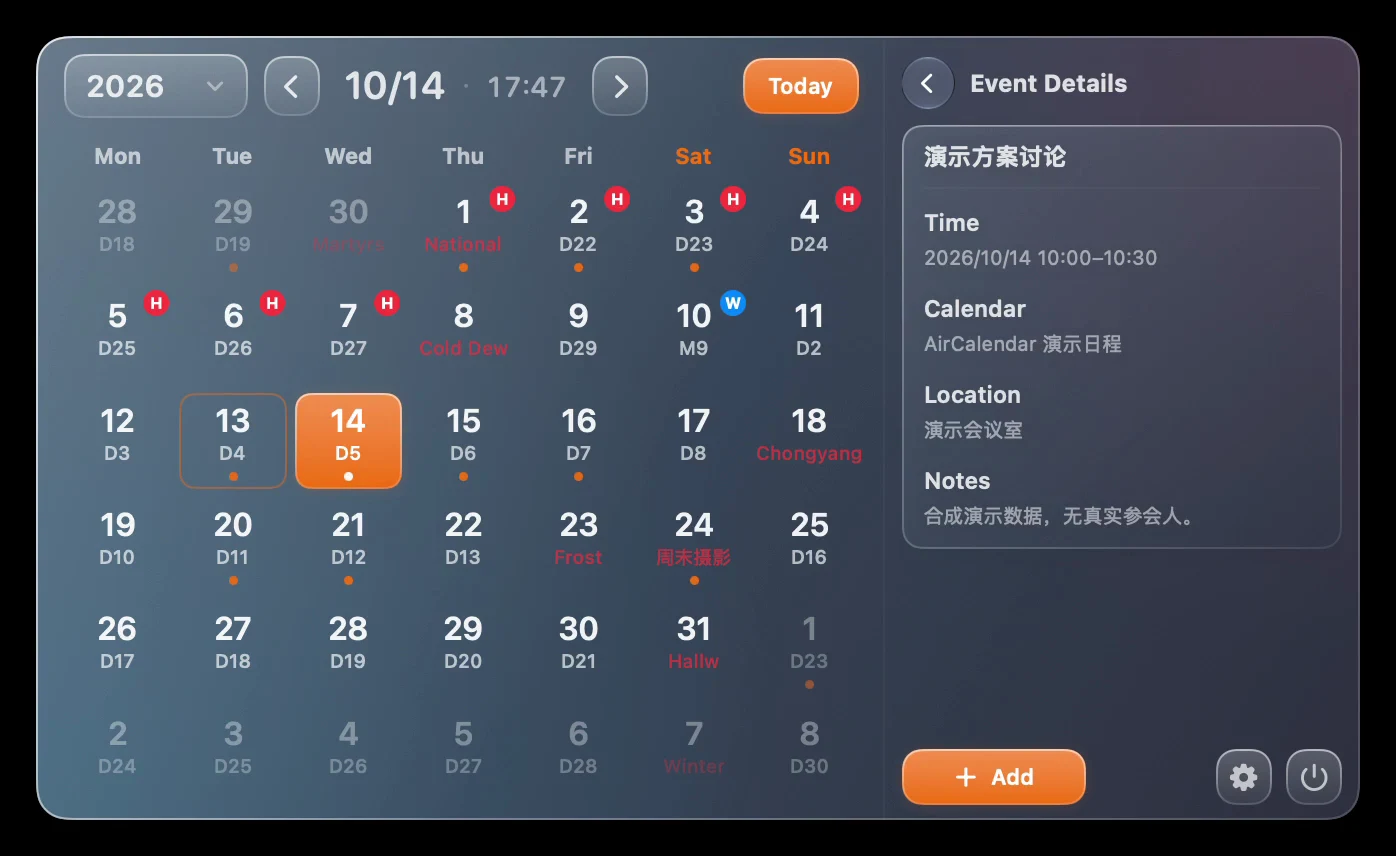
Allow calendar access, open AirCalendar and select today to see existing system events. Add action items separately as local to-dos. Event viewing, local to-dos, shortcuts and the optional Reminders connection are free.
Before you start
- Requires AirCalendar 2.5.0 on macOS 14 or later. Existing system events must be available in the Mac Calendar app.
- Calendar access, Reminders access and notification permission serve different purposes. Grant only the permissions for the features you use.
Allow access to existing events
When AirCalendar asks to read calendars, allow access if you want to see system events. If access was previously denied, check AirCalendar’s Calendar permission in macOS System Settings. First confirm the expected event is present in Apple’s Calendar app.
Select today and read the event
Open the menu bar panel and select today, using the Today control if you have browsed to another date. Open an event in the schedule area to read its details. To create or edit a system calendar event, use the Calendar app.
Save a separate action item
Choose Add To-do in the main panel’s to-do area or Settings → To-dos. Enter a title, date and optional reminder, then save. Check its date or the Today task range. Marking this task complete changes the task; it does not cancel the calendar event.
Connect Reminders only if needed
In Settings → To-dos, turn on the Reminders connection and authorize macOS Reminders. The connection uses a dedicated AirCalendar list, rather than importing all your lists. System-account syncing follows your Reminders account settings.
Set a shortcut for the next visit
In AirCalendar Settings, record a global shortcut for opening the calendar or quickly adding a to-do. Try it while the app is running. If it fails, check that the combination is not already used by another app or the system.
Questions and troubleshooting
Why is the event list empty?
Check the selected date and Calendar permission, then confirm the event is present in the Mac Calendar app. Events that have not reached the system calendar cannot be displayed here.
Can I edit a meeting or send invitations in AirCalendar?
Use your calendar app for event creation, editing and meeting invitations. AirCalendar’s system-event workflow here is for viewing existing events.
Will the Reminders connection import every list?
No. It uses a dedicated AirCalendar list. Permission and an available list are required, and cross-device behavior depends on the system account.
Why is a task missing or not reminding me?
First check the saved date and active task range. For alerts, also check the task’s reminder time and macOS notification permission. Reminders permission is needed separately for the optional system connection.
Try the free calendar
Download AirCalendar for Mac. Start with the free calendar and to-dos; choose Pro in the app if you need weather, widgets or advanced customization.