Check holiday workdays
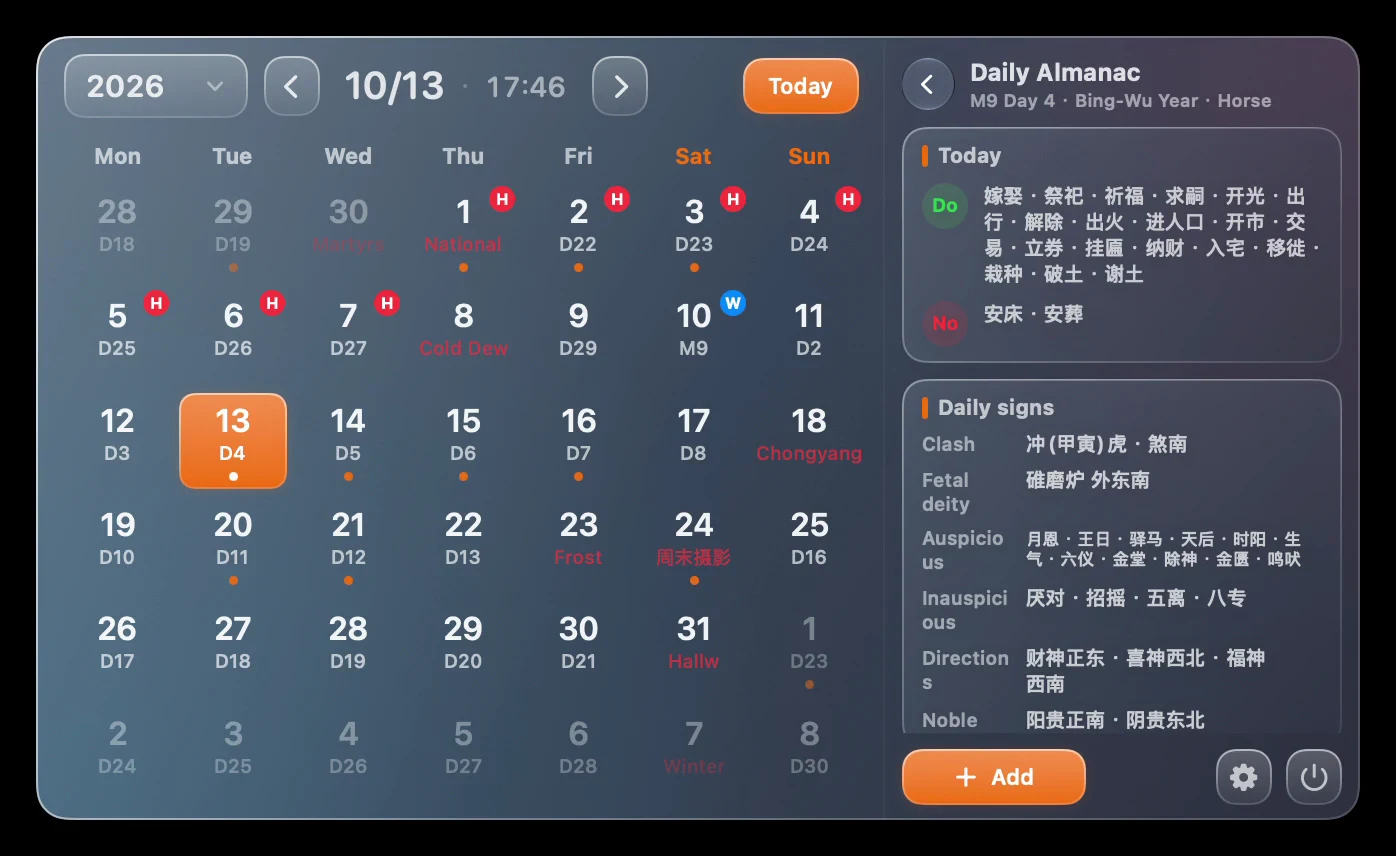
Choose the relevant month in AirCalendar and check both holiday and makeup-workday markings around the break. Confirm the region and year, then use the official holiday notice or your employer’s schedule for the final arrangement.
Before you start
- The calendar, holiday markings and local to-dos used here are free in AirCalendar 2.5.0 on macOS 14 or later.
- Regional holiday data is not a live replacement for government notices or an employer’s working schedule.
Choose the holiday month
Open AirCalendar from the Mac menu bar and navigate to the month of the break. Check the displayed year as well as the month, especially when planning a trip or handover well in advance.
Read both kinds of marking
Inspect the dates before, during and after the holiday. A holiday marking and a makeup-workday marking answer different questions. Check the weekday of each marked day instead of assuming every Saturday or Sunday is a day off.
Confirm the region and the notice
Open Settings and verify the holiday region. Return to the month and compare the marked dates with the relevant official holiday notice and your organization’s arrangement. Do not treat an unmarked date outside the included data as a confirmed day off.
Add the handover task
In the main panel’s to-do area, or Settings → To-dos, choose Add To-do. Enter a title such as “Prepare handover,” choose the intended date and an optional reminder, and save. Select that date or the corresponding task range to check the saved task.
Check notification permission
If you set a reminder, confirm AirCalendar is allowed to send notifications in macOS System Settings. Keep the app running as required for the reminder workflow. Check the task’s saved date and time; a task appearing in the list does not by itself confirm a notification was delivered.
Questions and troubleshooting
Can AirCalendar calculate my overtime pay or leave balance?
This guide covers calendar markings and local tasks. It does not calculate pay, leave entitlement or an employer’s roster.
Why are next year’s holidays incomplete?
The selected region and included years determine coverage. Check the official notice for dates that have not yet been included.
Why can’t I find the handover task?
Check its saved date and clear the current task range. In Settings → To-dos, use the appropriate date range or history view before creating a duplicate.
Why did no reminder arrive?
Check the task’s reminder time, macOS notification permission and system notification restrictions. An allowed notification is still subject to the system’s delivery conditions.
Try the free calendar
Download AirCalendar for Mac. Start with the free calendar and to-dos; choose Pro in the app if you need weather, widgets or advanced customization.