How to take a long screenshot on a Mac
In Clipture Pro, select the page region, enter scrolling capture and click Start. Scroll down manually, click Done, then inspect and save the stitched image.
Applies to Clipture 1.6.0 · macOS 14+ · Pro required
Open the page and let its content finish loading. Keep the window and capture width unchanged. The app needs screen recording permission; check Accessibility if the app requests it for the target window or scroll region.
In the app
- Open scrolling capture from Clipture’s menu bar or its configured shortcut, and choose the area to keep. Leave unrelated sidebars outside the region.
- Click Start before scrolling. Move down gradually in the original application, keeping enough overlapping content between screenfuls. You control the scroll; Clipture samples and stitches the screen.
- Click Done after the content you need. Inspect the top, middle and bottom of the long image for gaps, duplicates or alignment errors.
- Copy, save or pin the result. Confirm a saved file opens correctly before sharing or closing the result.
Sample interactive demo
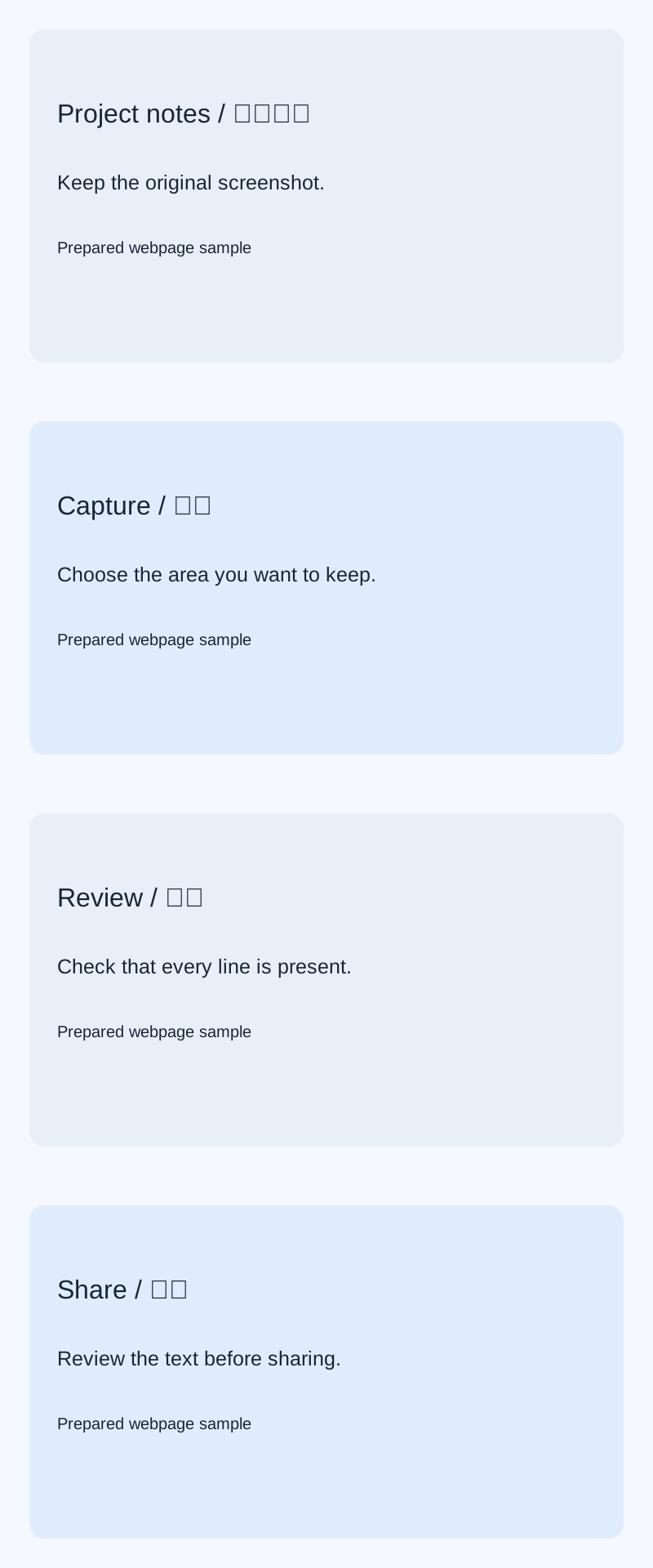
The full image below is a prepared webpage sample, viewable at its original size. It explains the output shape; it is not a capture produced by Clipture.
Open full-size sample image ↗Prepared full sample
If the result is not right
- Missing or repeated sections: let dynamic content load first and try a smaller area or a steadier scrolling pace.
- Fixed headers or sticky bars: adjust the capture region to exclude them when possible. Page layout can still affect stitching.
- No captured image: check screen recording permission, then retry. Pro access does not grant macOS permissions.
- A webpage working does not establish compatibility with every chat app or document editor. Test the target application before an important capture.
Continue on your Mac