Search and organize your clipboard
Start with a keyword, then narrow the recorded history by type, time or whether a record has a note. In PasteNook 1.6, notes participate in search. Add a useful project name to a record’s note so you have another way to find it later.
· PasteNook 1.6.0 · macOS 14+
Before you start
- Search applies to captured, retained records. A query cannot restore deleted or uncaptured history.
- Favorites, custom tags and advanced app filters or exclusion rules are paid capabilities. Do not assume every organization control is included in the free plan.
Search before adding more filters
Try a distinctive word from the content. Then add a type or time condition if the result is too broad. This makes it easier to see which condition removed an expected item.
Write a note that supplies missing context
Right-click a card and choose Add/Edit Note and add a project alias or purpose, such as “reply template for Coastal Notes.” Save the note. The screenshot shows the real note editor; the note is metadata, not replacement clipboard text.
Write a note that supplies missing context · Screenshot reference
This capture includes a save-state overlap. Open the original for reference.
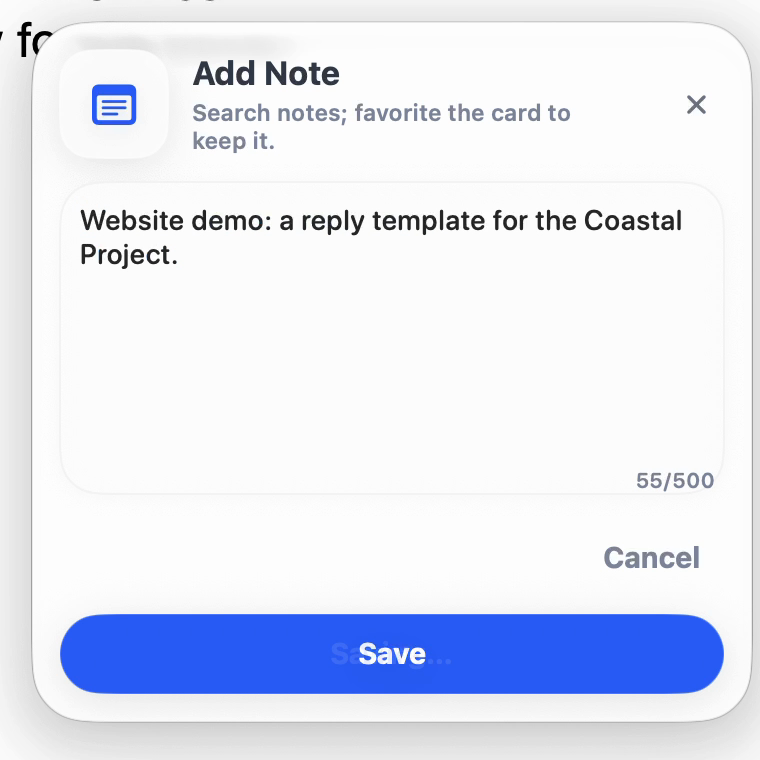
Real recording still: sample note editor or document result, 1.6.0 (315). Open full-size image ↗ Find it by note and time
Search for a distinctive word from the saved note. Use “Has Note” to keep only annotated records, or select a time range such as today, yesterday or the last seven days. These controls can be combined, so reset them when you want a broader result.
Keep frequently used material easy to reach
Use card pinning to place useful content near the top. If you have a paid plan, use favorites or a custom tag for repeat-use material. Panel pinning keeps the panel open; it is a separate action and is not a promise to preserve every record forever.
Keep the workspace understandable
Choose the toolbar actions you actually use and arrange their order in 1.6 settings. You can also choose Liquid Glass or another available theme. These appearance choices do not expand capture, retention or search coverage.
Before you write
Is a note pasted along with its record?
A note is organizational metadata. Do not expect it to become part of the copied text automatically; copy or edit the text explicitly if that is what the destination needs.
Why did a record disappear after filtering?
Several conditions may be active together. Clear the query, time, type and note filters, then add them back one at a time.
Does pinning create an independent backup?
No. Card placement and keeping the panel open are interface conveniences. Backups and exports are separate paid tools, with their own saved files.
Use PasteNook on your Mac
Requires macOS 14 or later. Start recording before you need to find something again.