Find your Mac clipboard history
PasteNook can show and search clipboard items it recorded while it was running with recording enabled. Start recording, copy something, then find that captured item in its panel. It cannot recover copies from before installation or content it never captured.
· PasteNook 1.6.0 · macOS 14+
Before you start
- Requires PasteNook on macOS 14 or later. The website demo is a sample workflow, not your real clipboard.
- The free plan has a 100-item history limit in the checked 1.6 configuration. Retention, capacity, exclusions and deletion affect what remains available.
Record a few new copies
Open PasteNook and make sure recording is active. In a document, copy a short, non-sensitive sentence with Command+C, then copy a second sentence. Starting the app after both copies does not recreate a history of them.
Open the panel and browse
Open PasteNook’s panel and look for the newly captured cards. The real panel below illustrates how different types of captured content appear. A record refers to captured content; it is not a backup of everything in the source app.

Scroll the image sideways to explore the full panel. Real PasteNook 1.6.0 (315) panel, captured October 11, 2026. Cropped panel detail with sample content; open the full image to see all cards. Themes depend on your settings. Open full-size image ↗ Search with a distinctive word
Enter a word from the item you want. If the list becomes empty, clear category, time and “Has Note” filters and try a shorter query. In 1.6, notes can also supply searchable context. Search is limited to recorded and retained data.
Copy the record, then paste
Choose the matching record and use Copy. Switch to a draft and press Command+V. The screenshot shows a real example of a captured reply used in a document. Optional automatic paste needs Accessibility permission; manual paste remains a useful way to check the result.
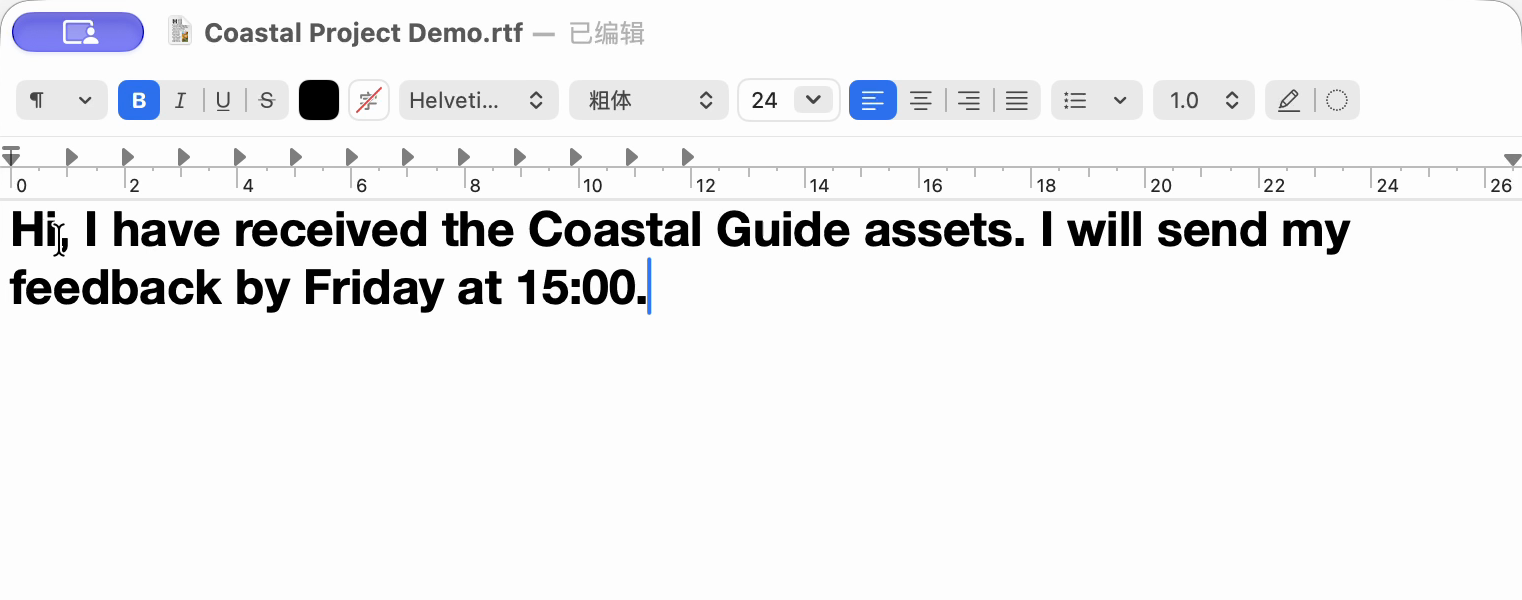
Real recording still: sample note editor or document result, 1.6.0 (315). Open full-size image ↗ If the item is missing, check capture first
Check whether recording was paused, a source app or keyword was excluded, or the item was removed by retention, capacity limits or deletion. If it was never captured, search cannot restore it. If the source is still open, copy it again while recording is active.
Before you write
Can I recover something copied yesterday before I installed PasteNook?
No. This guide works only for records PasteNook captured and still retains. A recent date alone does not make an uncaptured copy recoverable.
Does the website demo read my clipboard?
No. It uses sample data inside the page and leaves your system clipboard unchanged. Use the Mac app for your own history.
Will every file be searchable by its contents?
Do not assume so. Recorded text, metadata and notes can be searched, but this is not an unlimited full-text index of arbitrary file contents.
Use PasteNook on your Mac
Requires macOS 14 or later. Start recording before you need to find something again.