Copy several text clips together
Use PasteNook multi-select to choose several recorded text cards, then choose Copy and paste the combined text into a draft. Text records are joined with line breaks in the displayed list order. This makes one combined copy; it does not paste a queue of separate items automatically.
· PasteNook 1.6.0 · macOS 14+
Before you start
- The multi-select and sweep-selection controls are included in the published 1.6 release. Use text-only records for the workflow below.
- Copying text together is different from dragging images or files. Pasteboard formats and the receiving app determine which non-text or mixed selections work.
Capture the pieces you want
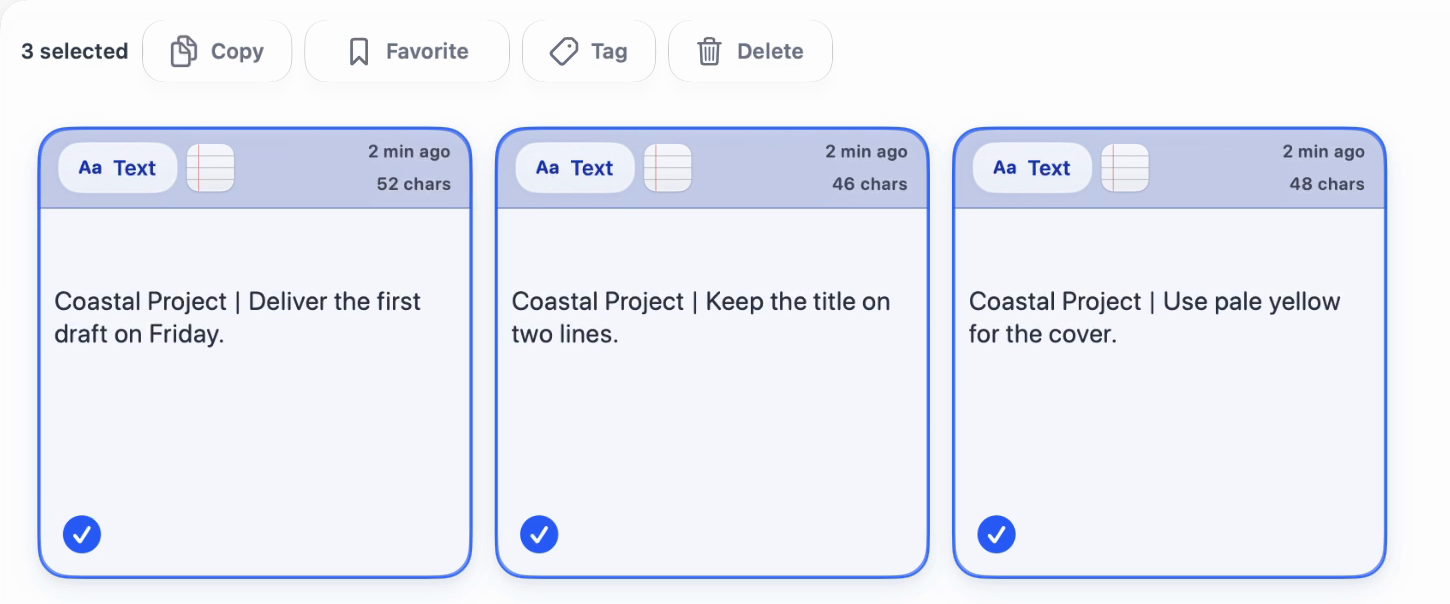
With recording active, copy two or three short text passages separately. Use a clear sample such as a project deadline, a title instruction and a cover instruction. Confirm that each passage appears as a card.
Select the intended cards
Choose “Select Multiple Cards” in the toolbar, then click the cards you need. You can also sweep across adjacent cards where the Mac selection surface supports it. Clicking individual cards is the precise alternative; you do not need a complex drag to complete this workflow.
Real recording still: sample note editor or document result, 1.6.0 (315). Open full-size image ↗ Check the selected set and order
Check the selection count and selected card outlines before choosing Copy. The combined text follows the displayed list order rather than the order in which you clicked cards. If order matters, inspect the result before using it in final work.
Copy once and inspect in a draft
Choose Copy in the multi-select actions, switch to a document and press Command+V. Check that all intended passages are present and separated by line breaks. Edit the resulting text in the document if you need a different order or separator.
Use separate checks for images and files
Do not infer that the same result applies to a mixed selection. Some target apps accept multiple file URLs; others accept only text or one image. Try a non-sensitive sample in the actual destination. If it fails, copy suitable records separately rather than assuming a paste queue is running.
Before you write
Does selecting cards automatically send messages or paste them one by one?
No. Selection and Copy prepare clipboard content. They do not send messages or run an automatic sequence in another app.
Does “Select current” mean every record in my history?
No. In this workflow it refers to the current visible card set, not a full-library selection. Check the selected count and cards.
Can I follow this guide from my phone?
You can read the screenshots and watch the existing batch recording on the product page. Actual Mac clipboard multi-select is a Mac app workflow; the website’s sample demo provides click-based controls.
Use PasteNook on your Mac
Requires macOS 14 or later. Start recording before you need to find something again.